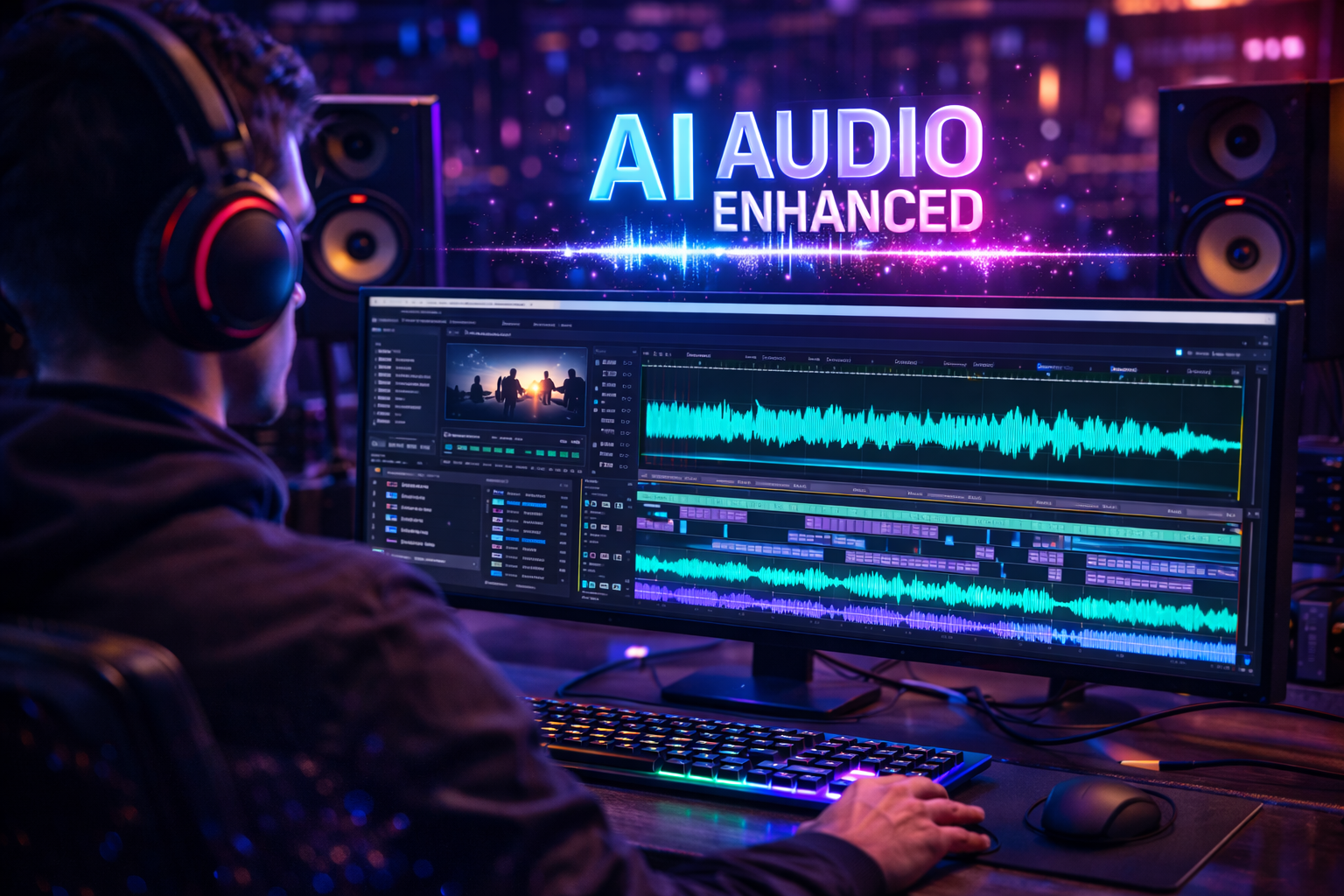
Every professional content creator knows the golden rule of video production: People will forgive bad video quality, but they will immediately click away if the audio is bad. You can shoot a video on a $10,000 RED camera, but if your voice is echoing or drowned out by wind noise, your video is ruined.
In our massive pillar guide on the 5 best AI music tools 2026 , we explored standalone AI software that generates and edits music. But what if you are a YouTuber or a filmmaker who wants to mix audio perfectly inside your video editor without exporting it to another program?
Welcome to our final and ultimate Premiere Pro AI audio tutorial 2026. Adobe has heavily integrated Firefly Generative AI and advanced machine learning into Premiere Pro’s audio workflow. In this guide, we will show you exactly how to fix terrible microphone recordings, auto-mix background music, and achieve Hollywood-level sound design in just a few clicks.
Why Premiere Pro is the Ultimate Audio AI Tool in 2026
Before we dive into the steps of this Premiere Pro AI audio tutorial 2026, let’s understand the massive shift in Adobe’s technology.
Traditionally, to fix a badly recorded podcast or vlog audio, you had to send the file to Adobe Audition, apply heavy noise gates, EQ filters, and compression, and spend hours tweaking the frequencies.
Today, Premiere Pro has the Essential Sound Panel powered by AI. It completely automates the tedious work of audio engineering. Whether you are mixing a custom song you generated using Suno AI or editing a podcast voiceover, the AI now “listens” to your timeline and makes intelligent mixing decisions for you.
Step-by-Step Premiere Pro AI Audio Tutorial 2026
Let’s turn your amateur audio into a studio-grade masterpiece. Follow this step-by-step Premiere Pro AI audio tutorial 2026 to completely transform your workflow.
Step 1: The Magic of “Enhance Speech” AI
Imagine you recorded a vlog outside, and there is traffic noise, wind blowing, and massive echo in your voice. In the past, this audio was unusable. Now, AI can fix it instantly.
-
Select your bad audio clip on the Premiere Pro timeline.
-
Open the Essential Sound panel on the right side of your screen.
-
Click on Dialogue.
-
Scroll down and click the magical “Enhance Speech” button.
What happens next? The AI analyzes your voice, mathematically removes all background noise and room echo, and regenerates the missing vocal frequencies. Your cheap camera microphone will instantly sound like a $1,000 studio condenser mic!
5 Best AI Songwriting Tools 2026: The Ultimate Creative Guide
Step 2: Auto-Tagging Your Audio Tracks
To make the AI mix your video perfectly, you need to tell it what it is listening to. This is a crucial step in our Premiere Pro AI audio tutorial 2026.
In the new 2026 update, Premiere Pro features Auto-Tagging. The AI automatically scans your entire timeline and places small interactive icons on your clips:
-
🗣️ Dialogue (People speaking)
-
🎵 Music (Background tracks)
-
🔊 SFX (Sound Effects like swooshes and explosions)
-
🍃 Ambience (Room tone or nature sounds)
Once tagged, the Essential Sound panel unlocks specific AI tools for each category.
Credited By: Justin Brown – Primal Video
Step 3: AI Auto-Ducking (The Video Editor’s Best Friend)
Have you ever tried to manually lower the volume of your background music every time you speak, and then raise it back up when you stop speaking? It takes forever. AI Auto-Ducking does this automatically.
-
Drop a royalty-free Premiere Pro AI audio tutorial 2026 background track from Soundraw AI onto your timeline.
-
The AI will auto-tag it as Music.
-
In the Essential Sound panel, check the box for Auto-Ducking.
-
Select “Duck against Dialogue.”
Instantly, Premiere Pro will draw perfect volume keyframes across your entire 10-minute video. Whenever you talk, the music smoothly fades down. When you stop, the music swells back up cinematically!
Step 4: Generative Extend for Audio (Firefly AI)
This is the most mind-blowing feature in this Premiere Pro AI audio tutorial 2026.
Sometimes, your background ambience (room tone) cuts off too early, leaving a dead, awkward silence in your video. Instead of copying and pasting the audio and creating weird looping sounds, you can use the Generative Extend Tool.
Simply click and drag the edge of your audio clip. Adobe Firefly AI will generate brand new, completely seamless background audio to fill the gap! It matches the exact acoustic environment of your original recording.
Need a specific voiceover but the actor isn’t available? Use Kits AI Voice Cloning to generate the voice, and drop it straight into Premiere Pro!
Who Needs These Audio AI Features?
Throughout this Premiere Pro AI audio tutorial 2026, we have seen how powerful these tools are. But who benefits the most?
-
YouTubers and Vloggers: Save hours of mixing time and never worry about recording in noisy environments like cafes or busy streets.
-
Podcast Editors: Clean up guest audio recorded on terrible laptop microphones instantly.
-
Indie Filmmakers: Achieve a dynamic, cinema-standard audio mix (Loudness Radar compliance) without hiring a professional sound engineer.
-
DJs and Music Producers: If you extracted a vocal using LALAL.AI and are shooting a music video for your remix, Premiere Pro makes syncing and mastering the final video export flawless.
Conclusion: Master Your Sound
Video editing is 50% visuals and 50% audio. As we have proven in this comprehensive Premiere Pro AI audio tutorial 2026, artificial intelligence is removing the technical barriers of sound engineering.
By utilizing the Enhance Speech tool, Auto-Tagging, and AI Auto-Ducking, you can produce content that sounds crisp, professional, and highly engaging in a fraction of the time it used to take. Adobe Premiere Pro is no longer just a video editor; it is an incredibly powerful AI audio workstation.
This concludes our massive 5-part series on the best AI tools for modern creators! Have you tried the Enhance Speech feature yet? Did it save your noisy audio recordings? Drop your thoughts and reviews in the comments section below!
Frequently Asked Questions (FAQs)
Q1. Do I need an internet connection to use Enhance Speech in Premiere Pro 2026?
A1. The basic version of Enhance Speech can run locally on your computer if you download the language packs. However, for the most advanced generative AI processing and highest quality, an active internet connection to Adobe’s cloud is recommended.
Q2. Does the Premiere Pro AI audio tutorial 2026 apply to Adobe Audition as well?
A2. Yes! Adobe has integrated many of the same AI features, including Enhance Speech and Auto-Ducking, directly into Adobe Audition for creators who prefer a dedicated Digital Audio Workstation (DAW).
Q3. Will Enhance Speech change the tone of my voice?
A3. In the 2026 update, Adobe introduced a “Mix Amount” slider. If you set it to 100%, the AI might make you sound slightly robotic or overly processed. It is best to keep the slider between 60% and 80% to remove noise while keeping your natural voice tone.
Q4. Can Premiere Pro AI generate background music like Suno or Soundraw?
A4. While Premiere Pro uses Firefly AI to generate sound effects and extend background ambience, it does not currently generate full musical songs. You will still need tools like Soundraw or Suno AI to generate the actual music tracks for your videos.
Q5. Is the Essential Sound panel available in the free version of Premiere Pro?
A5. Adobe Premiere Pro does not have a free version (only a 7-day free trial). To access these advanced AI audio features, you must have an active Adobe Creative Cloud subscription.