
If you are a YouTube creator, a digital marketer, or an Instagram influencer, you already know the worst nightmare of content creation: the dreaded Copyright Strike. You spend forty hours editing an amazing cinematic vlog, you upload it, and instantly, YouTube flags your background music. All your ad revenue gets stolen, or worse, your video gets taken down.
In our massive pillar guide on the 5 best AI music tools 2026 , we explored how artificial intelligence is solving the music industry’s biggest problems. While tools like Suno AI are great for creating full songs with vocals, sometimes you just need a simple, high-quality instrumental beat that fits your video perfectly.
Welcome to our ultimate Soundraw AI tutorial 2026. In this comprehensive guide, we will teach you how to generate unlimited, absolutely amazing royalty-free background music for your videos using Soundraw AI. You will never have to pay for expensive stock music subscriptions ever again!
What is Soundraw AI? (The Ultimate Solution for Creators)
Before we jump into the steps of this Soundraw AI tutorial 2026, let’s define what makes this software so unique.
Unlike other AI generators that require you to type complex text prompts (like “Create a sad acoustic song at 120 BPM”), Soundraw operates differently. It is a mood and genre-based music generator designed specifically for video editors.
5 Best AI Songwriting Tools 2026: The Ultimate Creative Guide
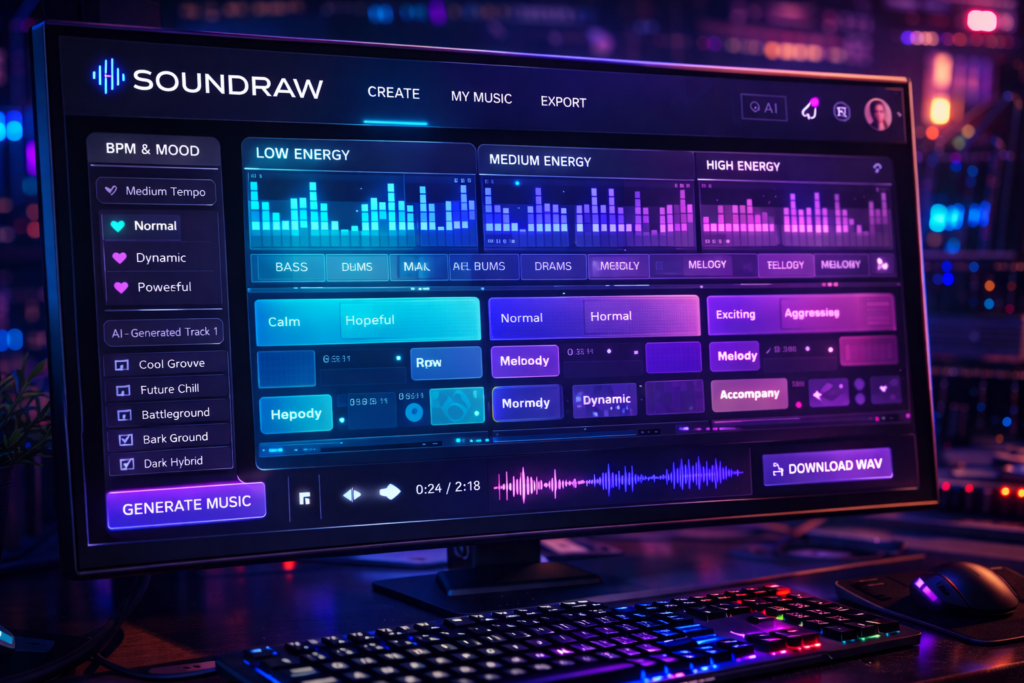
Instead of generating a locked, uneditable MP3 file, Soundraw gives you a dynamic music timeline. If your YouTube video has a massive explosion at exactly 1 minute and 15 seconds, you can tell Soundraw AI to make the music’s “Energy Level” drop the beat exactly at that timestamp! This level of customization makes it the undisputed king of royalty-free background music in 2026.
Step-by-Step Soundraw AI Tutorial 2026
You don’t need to know anything about music theory, chords, or audio engineering to use this platform. Follow this step-by-step Soundraw AI tutorial 2026 to generate your first custom track in less than 2 minutes.
Step 1: Select the Mood, Genre, and Theme
First, head over to the Soundraw AI website and click on the “Create Music” button. You will be greeted by a beautifully simple interface with three main categories:
-
Mood: Do you want the music to feel Epic, Happy, Dark, Relaxing, or Suspenseful?
-
Genre: Choose from Hip-Hop, Corporate, Lo-Fi, Cinematic, Acoustic, or EDM.
-
Theme: What kind of video are you making? (e.g., Vlogging, Travel, Gaming, or Real Estate).
For this tutorial, let’s select Mood: Epic, Genre: Cinematic, and Theme: Travel.
Step 2: Let the AI Generate Variations
Once you click your desired categories, the AI engine will instantly generate a list of 15 to 20 completely unique, royalty-free background music tracks.
Press the play button on a few of them. Because this is generative AI, no one else on the internet has the exact same track. You are listening to a 100% original composition.
Credited By: SOUNDRAW – AI Music Generator
Step 3: The “Pro Mode” – Customize the Energy and Length
This is the most incredible feature of our Soundraw AI tutorial 2026 and why video editors love this tool.
If you find a track you like, but it is 3 minutes long and your video is exactly 4 minutes and 12 seconds, simply change the “Length” setting. The AI will intelligently recalculate the song, adding new verses and a perfect outro to match your exact duration.
Next, look at the timeline below the track. It is divided into colored blocks representing the Energy Level (Low, Medium, High, Very High).
-
Is your video intro slow? Click the blocks to set the first 30 seconds to “Low Energy” (only piano).
-
Does your video have an epic drone shot? Set the next block to “Very High Energy” (massive drums and orchestra).
-
You can even toggle individual instruments! If the AI added an annoying electric guitar, simply uncheck the “Guitar” icon, and the AI instantly removes it without ruining the rest of the mix.
If you want to add a human voice over your newly generated Soundraw instrumental, you can clone your voice using ourKits AI Voice Cloning Tutorial 2026
Why YouTubers and Vloggers Need Soundraw in 2026
Throughout this Soundraw AI tutorial 2026, we have highlighted its amazing editing features. But the real reason this tool is going viral among the DJRM Music community is the legal safety it provides.
-
Zero Copyright Claims (Content ID Safe): When you download music from free YouTube channels, you risk getting a copyright claim later if that channel signs with a record label. Soundraw AI music is generated from scratch. It is mathematically impossible to get a Content ID match on YouTube or Twitch.
-
Monetize Everything: You keep 100% of your ad revenue. You can use these tracks for corporate client videos, TV commercials, and social media ads without paying royalties.
-
Endless Lo-Fi Streams: Many creators generate hours of Lo-Fi beats using Soundraw and host 24/7 live radio streams on YouTube, generating massive passive income.
Soundraw Commercial License: Is it Really Safe?
A crucial part of any Soundraw AI tutorial 2026 is understanding the pricing and commercial licensing.
Soundraw offers a Free Tier, which is excellent for generating and testing out the music editor. However, to actually download the high-quality WAV files and use them in your YouTube videos, you need to subscribe to their Creator Plan.
Once you are on a paid plan, every single track you download becomes permanently licensed to you. Even if you cancel your subscription next year, the videos you uploaded while you were subscribed will remain safe and fully monetized forever.
(Note: The only thing you CANNOT do is upload the raw Soundraw track directly to Spotify and claim you are the artist. Soundraw is strictly for background music synced to visual content or podcasts).
Conclusion: Stop Searching, Start Generating
Finding the perfect background song used to take longer than actually editing the video itself. As we have proven in this complete Soundraw AI tutorial 2026, those days are officially over.
By using Soundraw AI, you can generate the exact emotional vibe your video needs, customize the energy drops to match your cinematic cuts, and sleep peacefully knowing your channel is completely safe from copyright strikes. Your workflow is about to become 10x faster and infinitely more creative.
Are you going to use Soundraw for your next vlog or podcast? What genre of royalty-free background music do you struggle to find the most? Let us know in the comments section below!
Frequently Asked Questions (FAQs)
Q1. Does the Soundraw AI tutorial 2026 apply to Twitch streamers as well?
A1. Yes! Twitch is notorious for muting VODs (Video on Demand) if they detect copyrighted music. By playing Soundraw AI’s royalty-free background music during your live streams, your Twitch channel remains 100% safe from DMCA strikes and VOD muting.
Q2. Can I use Soundraw AI music for client work and freelance video editing?
A2. Absolutely. If you have the paid Creator or Commercial plan, you can use the generated music in videos you edit for your clients, including TV commercials, real estate walkthroughs, and corporate presentations.
Q3. How is Soundraw different from Suno AI or Udio?
A3. Suno AI and Udio are designed to create complete, lyric-based pop songs with virtual singers. Soundraw is specifically designed to create structured, instrumental background music that can be easily edited on a timeline for video production.
Q4. Can I edit a downloaded Soundraw track in my DJ software or DAW?
A4. Yes! Once you download the WAV file from Soundraw, you can drop it into FL Studio, Premiere Pro, or Serato DJ. You can add your own drum loops, mix it, or use it as an intro for your DJ sets.
Q5. Do I have to give credit to Soundraw in my YouTube description?
A5. No, it is not mandatory. While giving credit is always appreciated, Soundraw’s commercial license does not require you to paste any attribution links in your video descriptions, keeping your uploads looking clean and professional.